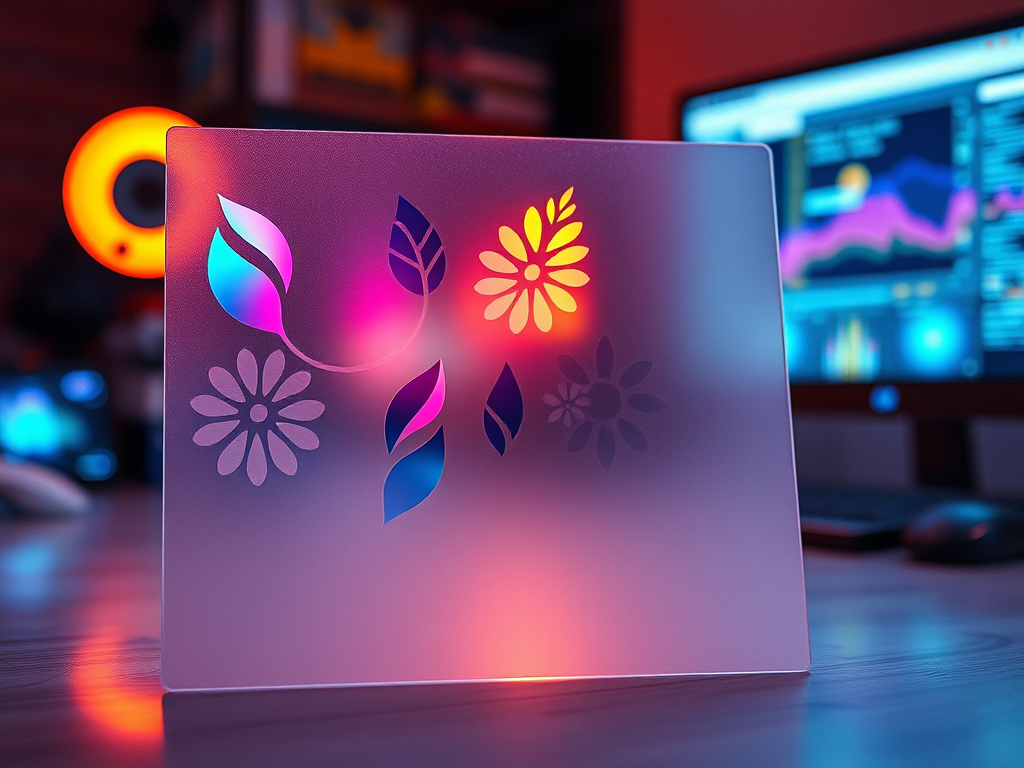
Creating unique airbrush stencils has never been easier, thanks to AI-generated images. AI tools allow artists to produce intricate, custom designs with ease. Follow this step-by-step guide to turn your favorite AI-generated image into a personalized stencil for airbrushing.
Step 1: Generate Your AI Image
1. Choose an AI Tool: Use an AI image generator like DALL-E, Midjourney, or Stable Diffusion. Each tool has different strengths, so choose one that suits your artistic vision.
2. Enter Your Prompt: Describe the image you want as specifically as possible. For instance, if you’re looking to create a nature-themed stencil, use keywords like “abstract leaves” or “geometric flowers.”
3. Generate and Select Your Image: Browse through the generated images and select one that works well as a stencil. Look for a design with distinct shapes or outlines, as intricate details can be tricky to cut out.
Budget-Friendly Stencil Making with Basic Supplies!
Step 2: Prepare the Image for Stenciling
1. Edit the Image: Use software like Photoshop, GIMP, or even free online editors. Here’s what to do:
• Convert to Grayscale: Turn the image black and white to focus on the main shapes.
• Increase Contrast: Boost contrast to emphasize the lines and shapes you’ll need for cutting.
• Simplify the Design: Remove unnecessary details or add thick outlines around key shapes. Simplified designs are easier to cut and work well for stenciling.
2. Test the Size: Resize the image to match the dimensions of your airbrushing project. Consider how much space the stencil will cover and scale the image suitably.
Step 3: Print and Prepare Your Stencil Material
1. Print the Image: Print the edited image on standard paper. For larger designs, you may need to print across multiple sheets and tape them together.
2. Choose Stencil Material: Select a durable yet easy-to-cut material for your stencil. Options include:
• Mylar Sheets: Popular for stencils due to their durability and flexibility.
• Transparency Film: Clear and flexible, allowing you to see your project surface.
• Cardstock: A cost-effective choice, though less durable than plastic-based materials.
3. Transfer the Design: Place the printed image on top of your chosen stencil material, securing it with tape. If your material is translucent, you can simply trace the design directly.
Step 4: Cut Out the Stencil
1. Gather Cutting Tools: Use a precision cutting tool like an X-Acto knife or a stencil burner for complex shapes. For simpler designs, a craft knife suffice.
2. Cut Carefully: Slowly and carefully cut along the lines of your design. Here are a few tips:
• Use a Cutting Mat: This will protect your workspace and help make cleaner cuts.
• Cut Inside Areas First: If your design has enclosed shapes, start with those to maintain stability in the stencil.
• Take Breaks: Cutting intricate designs can take time, so don’t rush.
3. Remove Excess Material: Once all lines are cut, remove any excess material to reveal your finished stencil.
Budget-Friendly Stencil Making with Basic Supplies!
Step 5: Use the Stencil for Airbrushing
1. Position the Stencil: Place the stencil on your project surface. Use low-tack tape or stencil adhesive spray to keep it in place, especially if it’s a large or detailed design.
2. Test Spray: Before airbrushing directly on your project, test the stencil on a practice surface. This helps you get comfortable with the pressure and paint flow.
3. Start Airbrushing: Hold the airbrush at a steady angle. Spray in light layers to avoid paint bleeding under the stencil edges. For sharper lines, spray directly over the stencil without tilting.
4. Remove the Stencil Carefully: Once done, lift the stencil gently to reveal your painted design. Be careful not to smudge the paint if it’s still wet.
5. Clean and Store the Stencil: Wash or wipe down the stencil to remove any paint residue. Properly stored, your stencil can be reused multiple times.
Step 6: Admire and Share Your Artwork
Once your airbrushing is finished, admire your work! You can use this stencil repeatedly for future projects or as inspirati1on for new AI-generated designs.
• Experiment with Layers: Try creating multiple stencils for different parts of the same design. Layer each stencil for a more complex and dimensional look.
• Combine AI Elements: Use AI-generated images as inspiration, but feel free to add your own hand-drawn details.
• Stay Inspired: AI tools are constantly evolving, so explore new styles and prompts to keep your designs fresh.
With these steps, you’ll be capable of creating custom stencils that add a unique, artistic flair to your airbrushed projects!
Budget-Friendly Stencil Making with Basic Supplies!
To start creating your own stencils you will need a kit that won’t break the bank. This kit has everything you need to get started.
We are a participant in the Amazon Services LLC Associates Program
Designed with WordPress
 Niver’s blog
Leave a comment